
A STARTING POINT FOR YOUR NEXT TASK
GPT-6 Astra Godot Blender 工作流
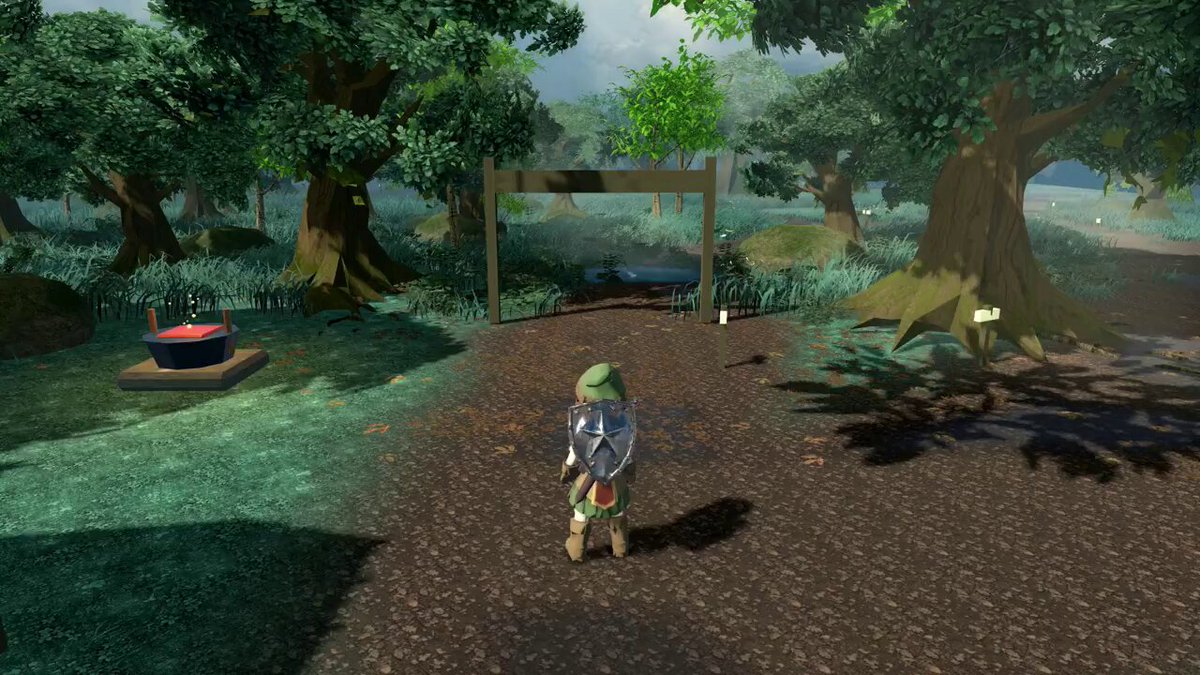
详细介绍如何使用 GPT-6 Astra 结合 Godot 和 Blender MCPs,创建与参考图像匹配的视觉风格。包括收集参考资料、连接工具以及生成可行走世界的步骤。
改成你自己的任务。
- 补上你的材料、对象和使用场景。
- 说明要交付的文件、页面或文字,以及验收标准。
- 先在在线对话中梳理需求,再到桌面推进文件与工具执行。
中文参考
第一步:收集能展示所需确切外观的图像或视频,并将其放入单独的文件夹中,例如 Game/Ref。 第二步:将 Godot MCP 和 Blender MCP 连接到 Codex,为 Agent 提供直接访问游戏引擎和 3D 工具的通道。 第三步:让 Astra 读取 Ref 文件夹内的所有文件,使其学习整体视觉方向和风格。 第四步:如果可能,安装 Dream-loop 技能。它有助于 AI 更高效地工作,并使游戏视觉效果更接近参考图像。 最终结果:一个可行的第三人称世界,包含森林小径、雾气缭绕的山谷、带有吊桥的城堡大门以及有喷泉的城镇广场,全部在一个连续的漫游场景中呈现。
原始提示词
GPT-6 ASTRA, CONNECTED TO GODOT AND BLENDER, IS STARTING TO MATCH A VISUAL STYLE STRAIGHT FROM REFERENCES. ▪ STEP ONE: collect images or videos that show the exact look wanted and put them in a separate folder, for example Game/Ref. ▪ STEP TWO: connect Godot MCP and Blender MCP to Codex, giving the agent a direct line into both the game engine and the 3D tool. ▪ STEP THREE: let Astra read every file inside the Ref folder, so it learns the overall visual direction and style. ▪ STEP FOUR: if possible, install the Dream-loop skill. It helps the AI work more effectively and pulls the game visuals closer to the references. The result: a walkable third-person world with a forest trail, a misty valley, a castle gate with a drawbridge and a town square with a fountain, all in one continuous walkthrough.
进入在线对话后,提示词会填入草稿,由你检查后发送。在线对话目前处理文本;网页、图片与 3D 制作需配合桌面端及相应工具。条目中的模型、技能和外部工具不代表当前账号已具备这些能力。